
How to Use the Halftone Tool in Supacolor's Gang Sheet Builder
If your artwork has a fade, glow, or gradient effect, it needs to be halftoned before you submit your gang sheet order. Skipping this step will result in a print that doesn't accurately represent your design — halftoning converts those smooth transitions into a pattern of dots that our printers can reproduce cleanly.

The good news: Supacolor's Gang Sheet Builder has a built-in Halftone Tool that handles this in seconds. Here's how to use it:
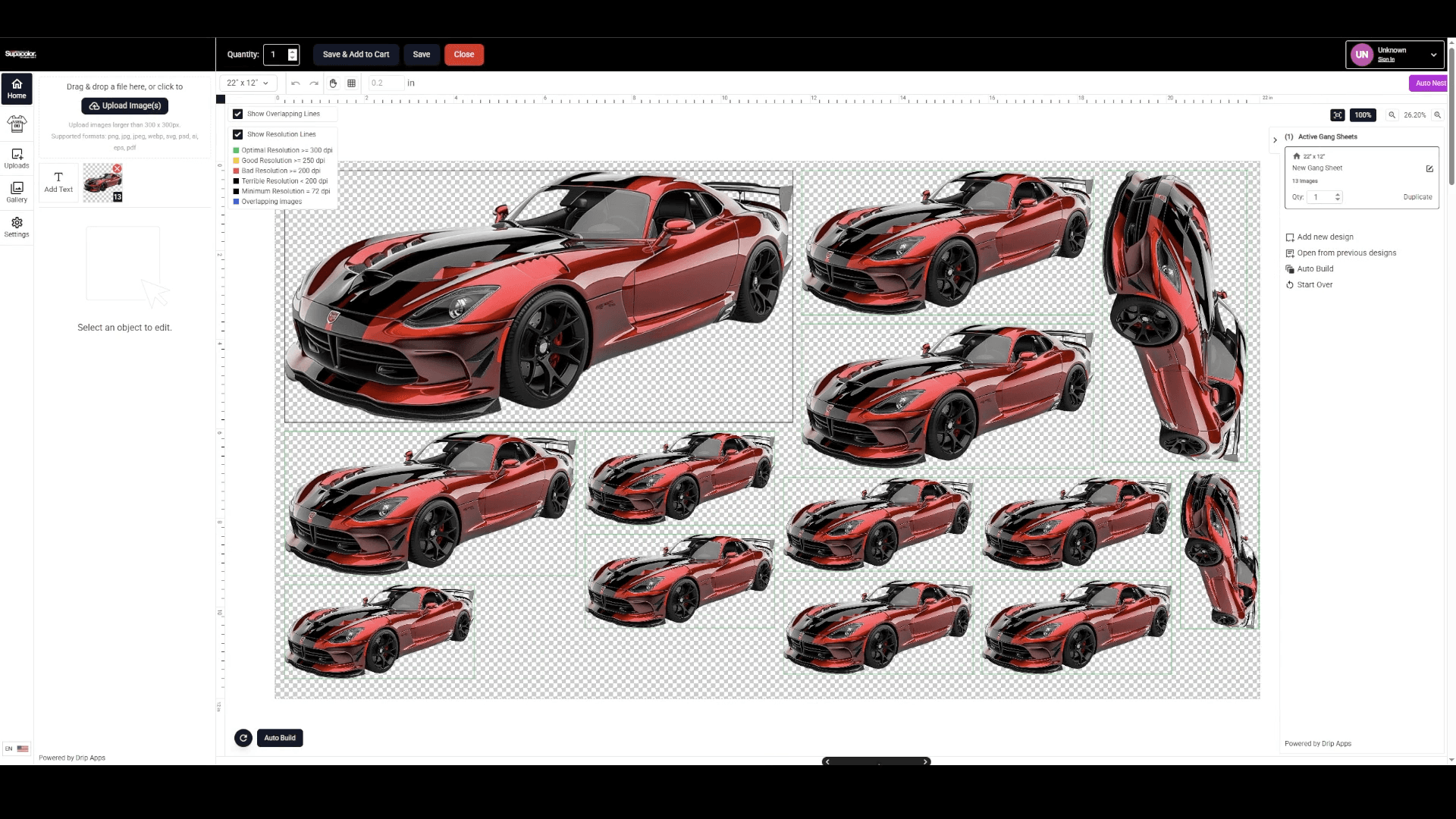
STEP 1: UPLOAD YOUR ART AND ADD IT TO YOUR GANG SHEET

Start by uploading your artwork file — the one containing the fade or glow effect — and place it onto your gang sheet as you normally would.
STEP 2: OPEN THE IMAGE EDITOR

With your image selected on the gang sheet, click the "Edit Image" option in the panel on the left side of the screen. This will open the Image Editor window.

STEP 3: SELECT THE HALFTONE OPTION
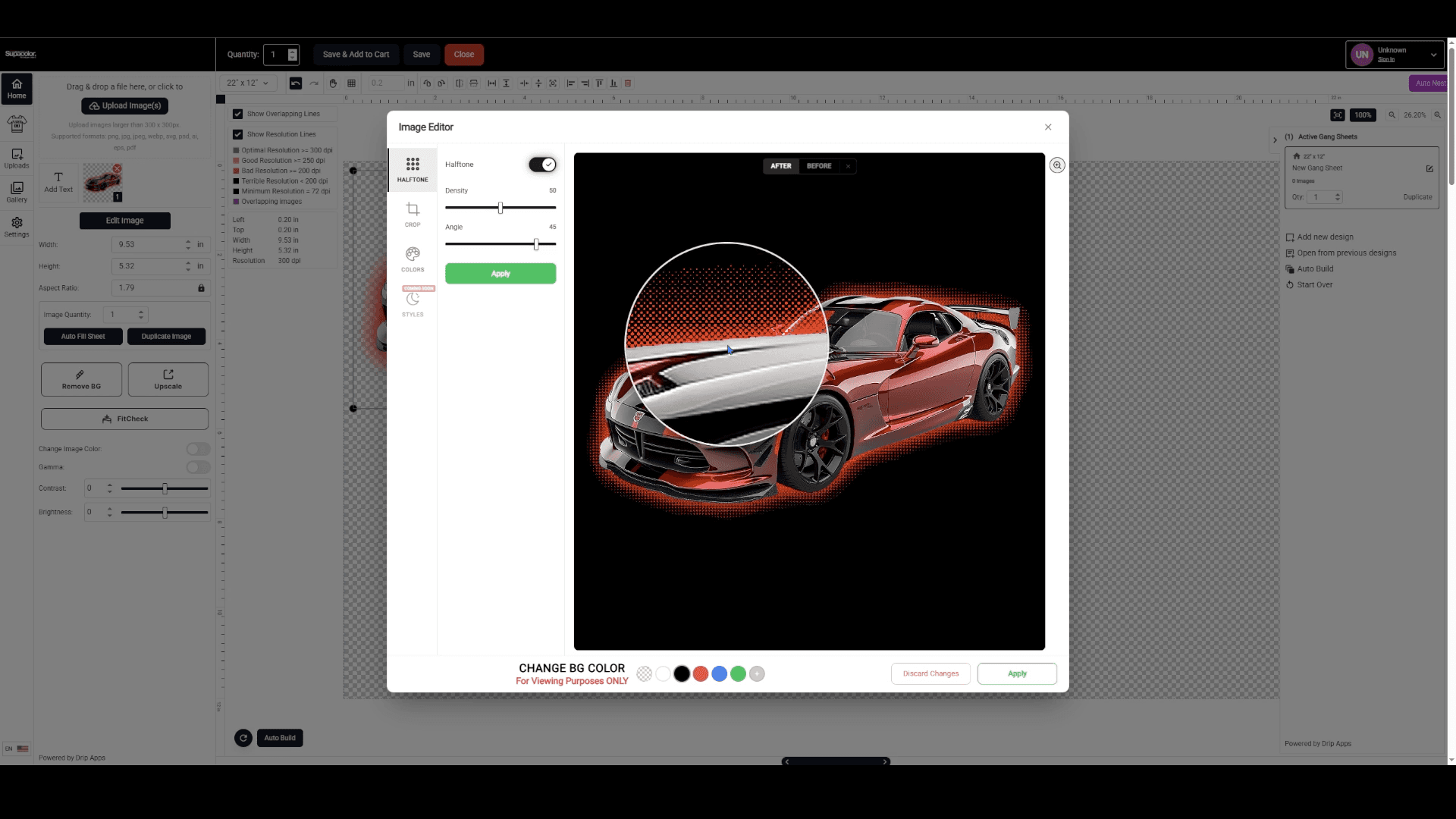
In the Image Editor window, click the "Half-tone" option in the top left.

STEP 4: TOGGLE ON THE HALFTONE EFFECT
Click the toggle switch to turn on the Halftone effect.

Your fades and glows will be converted to halftone dots within seconds.

STEP 5: ADJUST THE DENSITY AND ANGLE
Use the Density and Angle sliders to fine-tune how your halftone looks. Density controls how tight or spread out the dot pattern is. Angle controls the direction of the dot grid.

STEP 6: PREVIEW ON DIFFERENT BACKGROUNDS
Use the color swatches at the bottom of the panel to preview your halftone against different background colors. This lets you see exactly how the dots will look when pressed onto different colored garments.

STEP 7: ZOOM IN TO CHECK YOUR DOTS
Hover your cursor over the edges of your design to get a magnified view of the halftone dot pattern. Use this to make sure the density and angle are set to your liking before finalizing.

STEP 8: APPLY THE HALFTONE
When you're happy with the result, click "Apply" in the bottom right corner of the Image Editor to finalize the halftoned art on your gang sheet.

Your design is now halftone-ready and good to go for print. Any fades or glows that previously wouldn't reproduce correctly will now translate cleanly onto your transfers.
Ready to give it a try with our gang sheet builder?
Wholesale Business Accounts: Click here to log in to your Supacolor wholesale account.
Personal Accounts: Click here to shop all gang sheets in our online store open to the public.
Have additional questions about preparing your gang sheet? Our team is always happy to help. Email [email protected] or reach us at 844-973-2862.